



Wire CAN High and CAN Low from the screen harness to the MoTeC CAN bus, configure a CAN transmit template in the MoTeC software that matches the EliteDash configuration, then add the MoTeC source in Connection.
MoTeC does not broadcast a fixed data set by default. You build the transmit template, which means the channel order in your ECU must match the order the EliteDash configuration expects, or gauges will show the wrong values rather than no values.
On the ECU side:
- Open the MoTeC software for your ECU (M1, M150, M800 and similar).
- Create or load the CAN transmit template for EliteDash.
- Set the base address and bit rate.
- Send the configuration to the ECU.
On the screen:
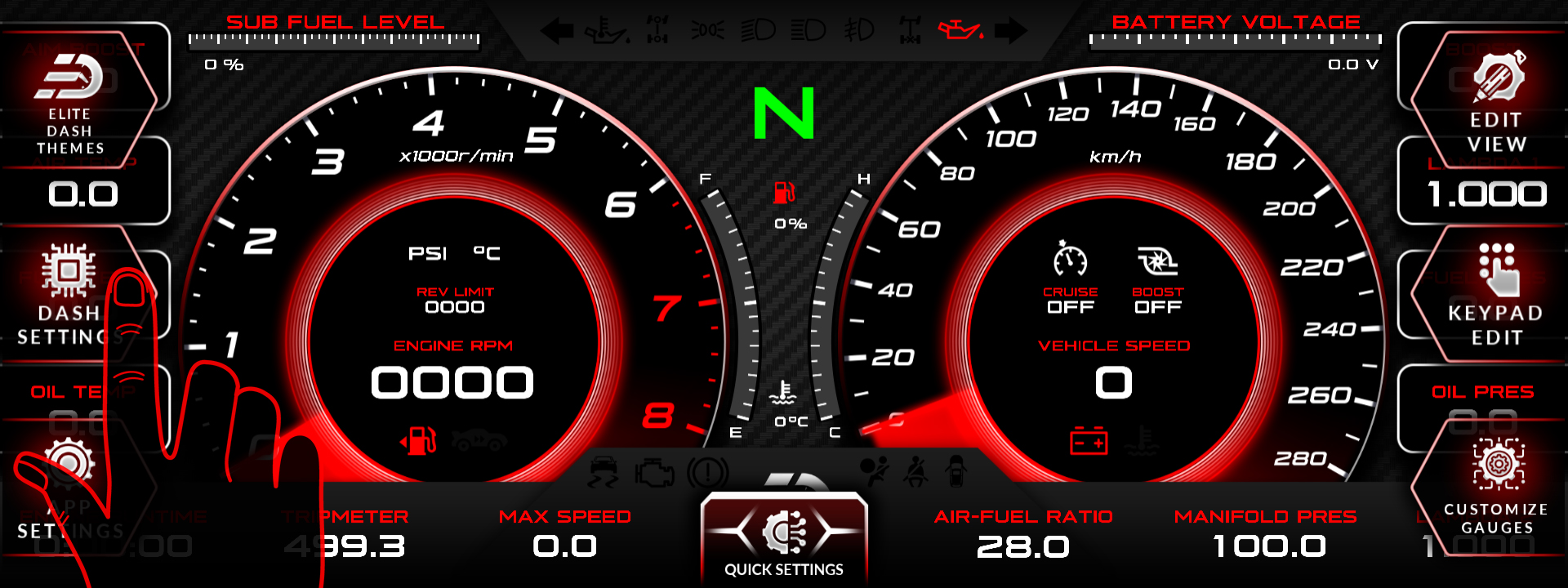
- Tap the top middle of the screen. The menu bar appears.
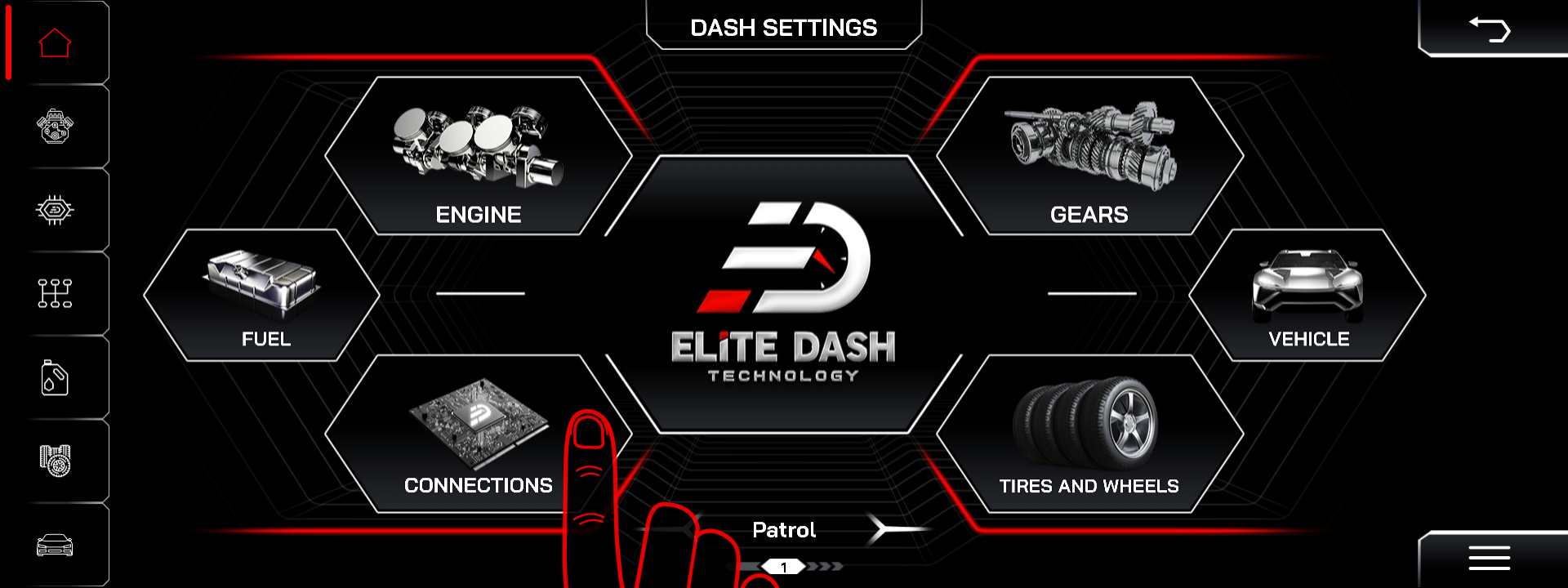
- Tap DASH SETTINGS.
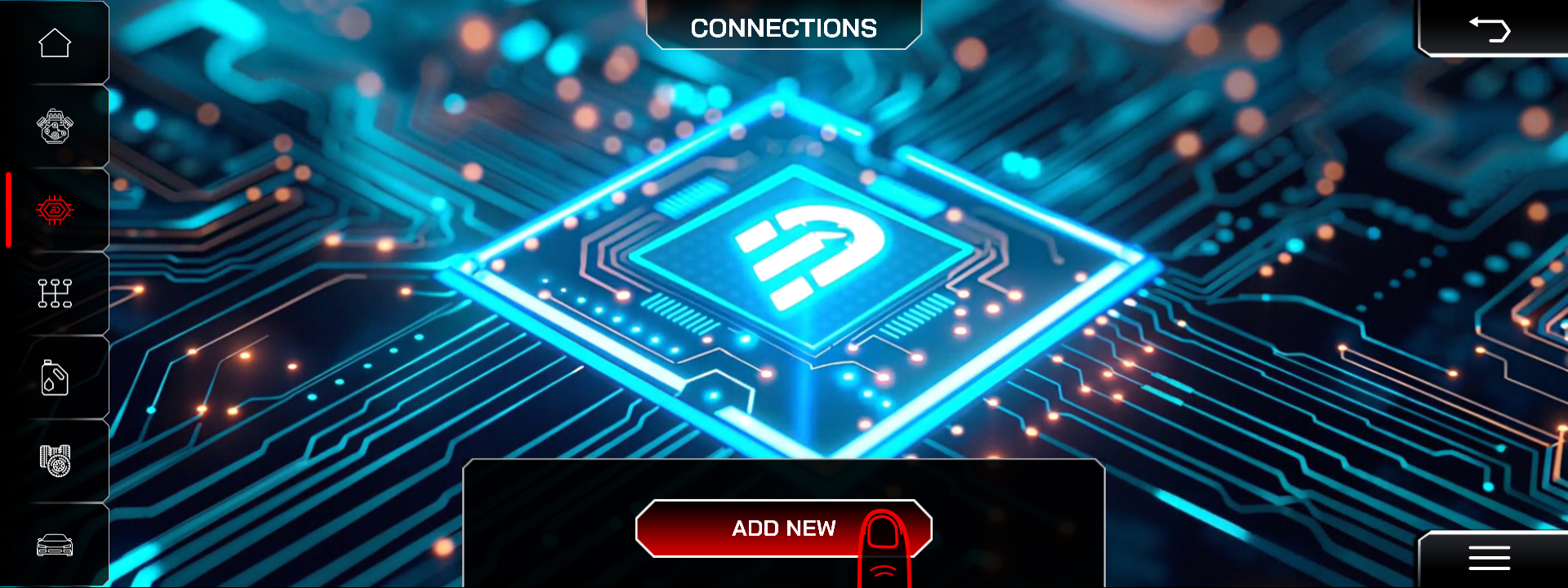
- Open Connection to view the current list of data sources.
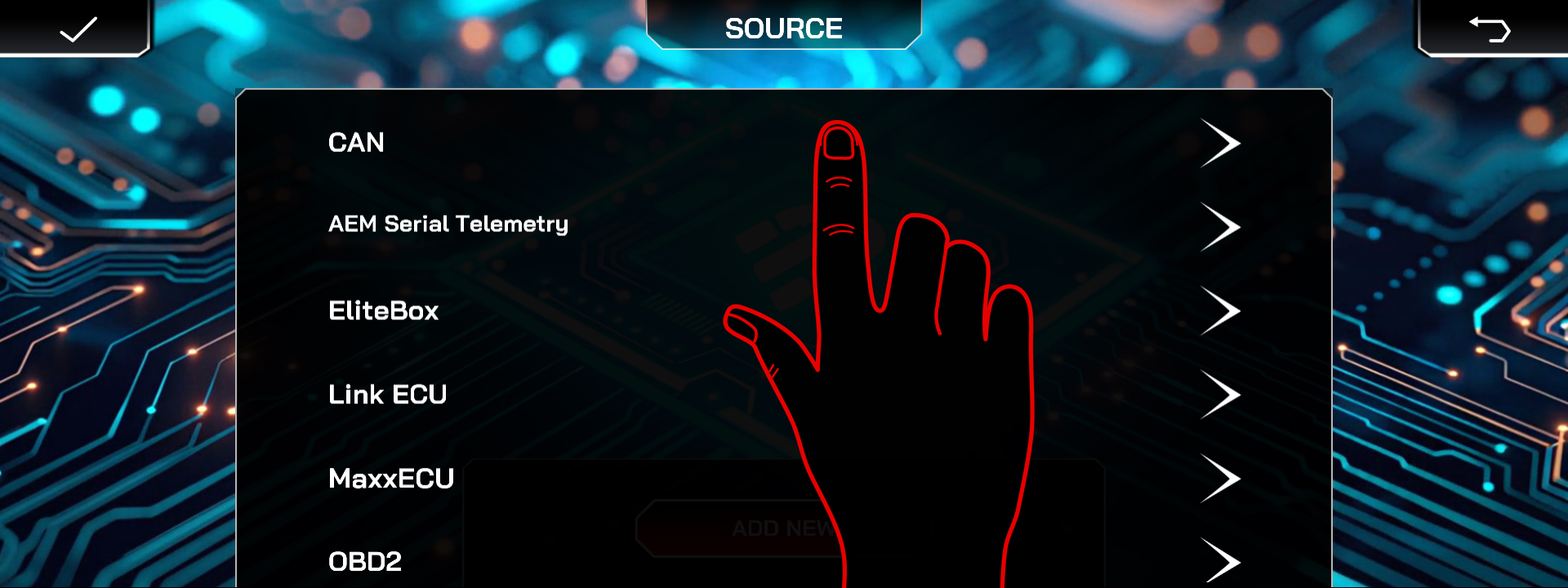
- Select the CAN source.
- Add CAN Description File
- Then select the MoTeC source.
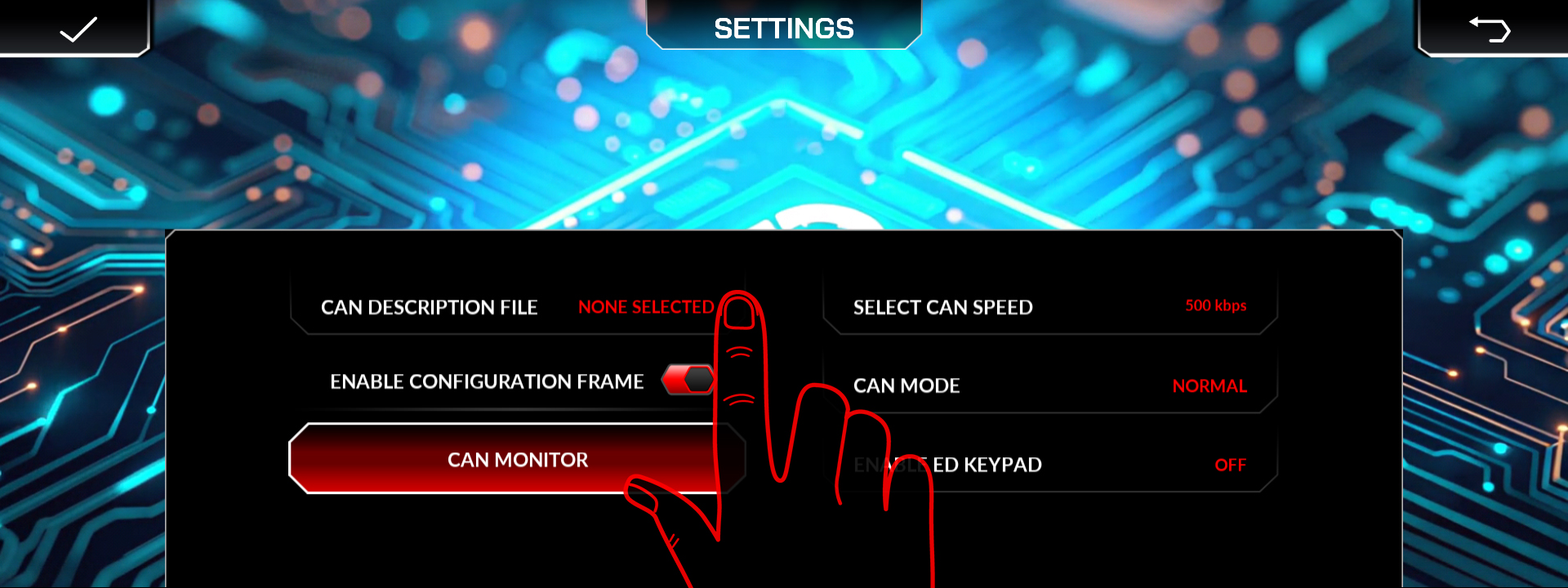
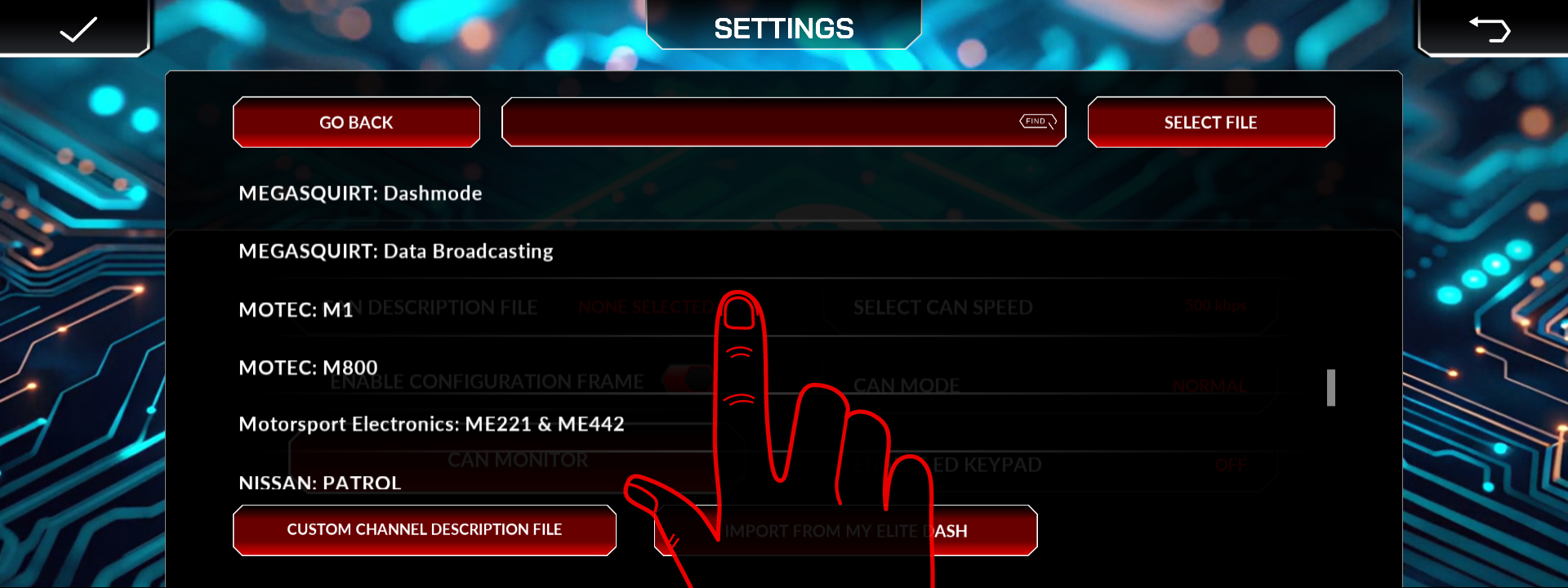
Published XML file names per MoTeC family (M1, M800, custom versions), base CAN address and bit rate.
⚠️ Wrong channel order looks like working data. If oil pressure reads 90 when the engine is off, the template order is wrong. Stop and fix the template rather than recalibrating gauges around it.
Related: Understanding CAN XML Files and Channel Mapping · How to Add a New ECU Connection · My Screen Turns On but Shows No ECU Data