


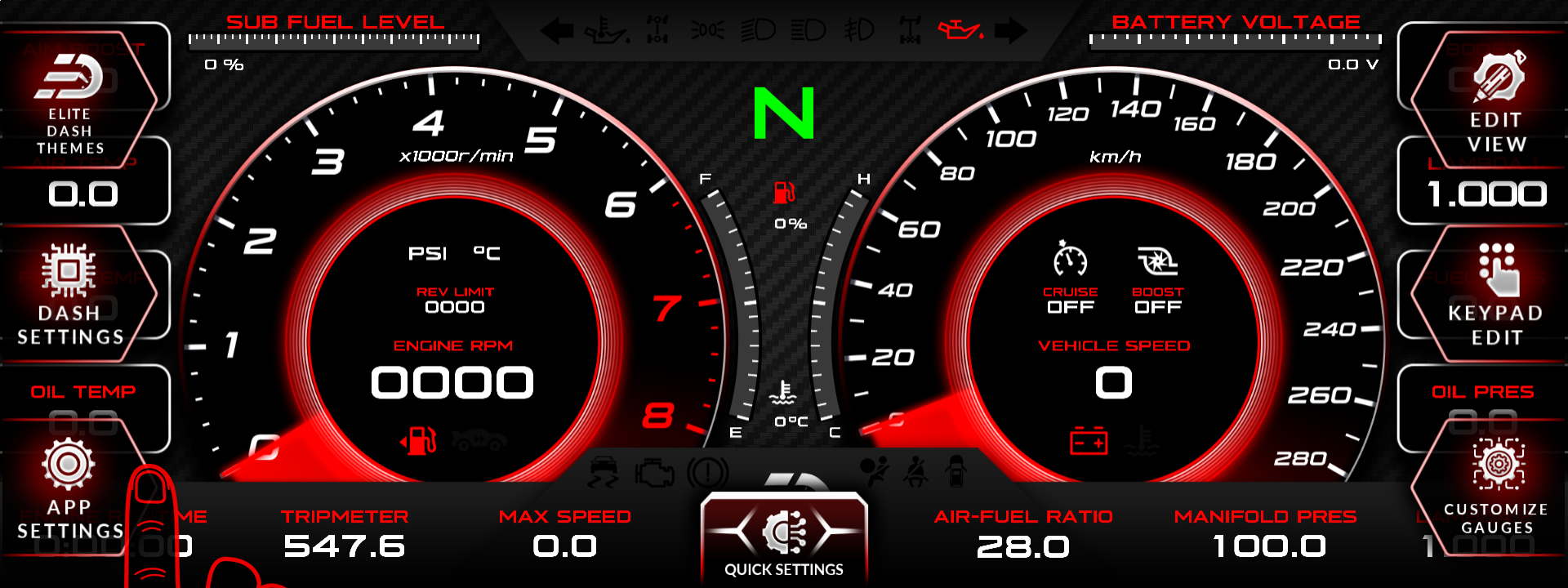
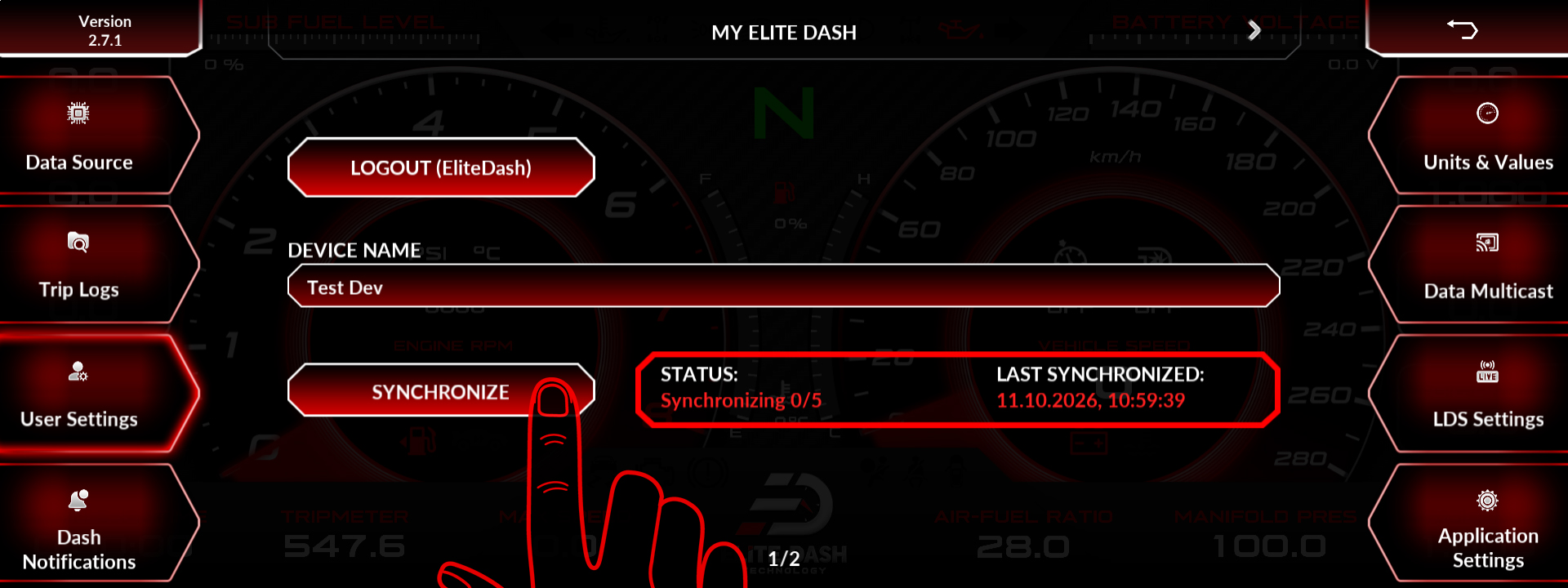
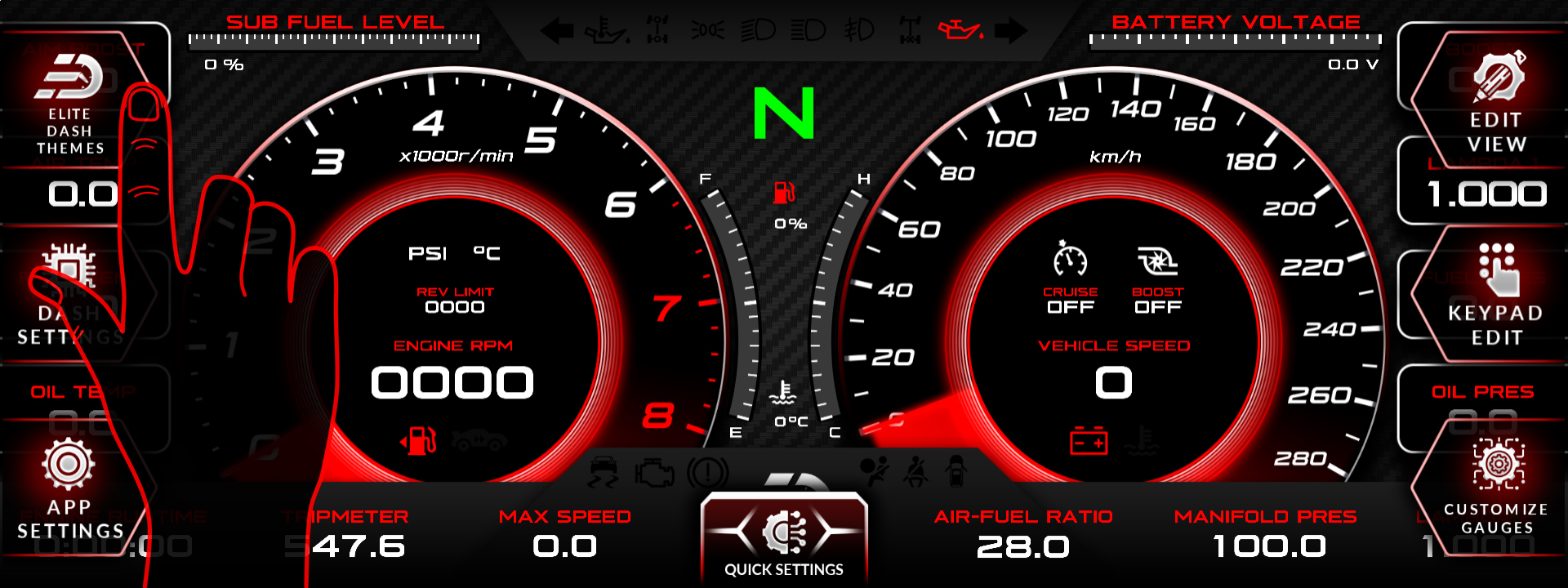
Connect the screen to Wi-Fi, open APP SETTINGS, go to User Settings and press synchronize. A purchased theme does not appear until the account has synced on the screen.
Work through these in order:
- Confirm Wi-Fi. The screen cannot sync without a network. Use a phone hotspot if needed.
- Confirm you are logged in to the right account. The theme is attached to the account that made the purchase.
- Synchronize under APP SETTINGS, then User Settings.
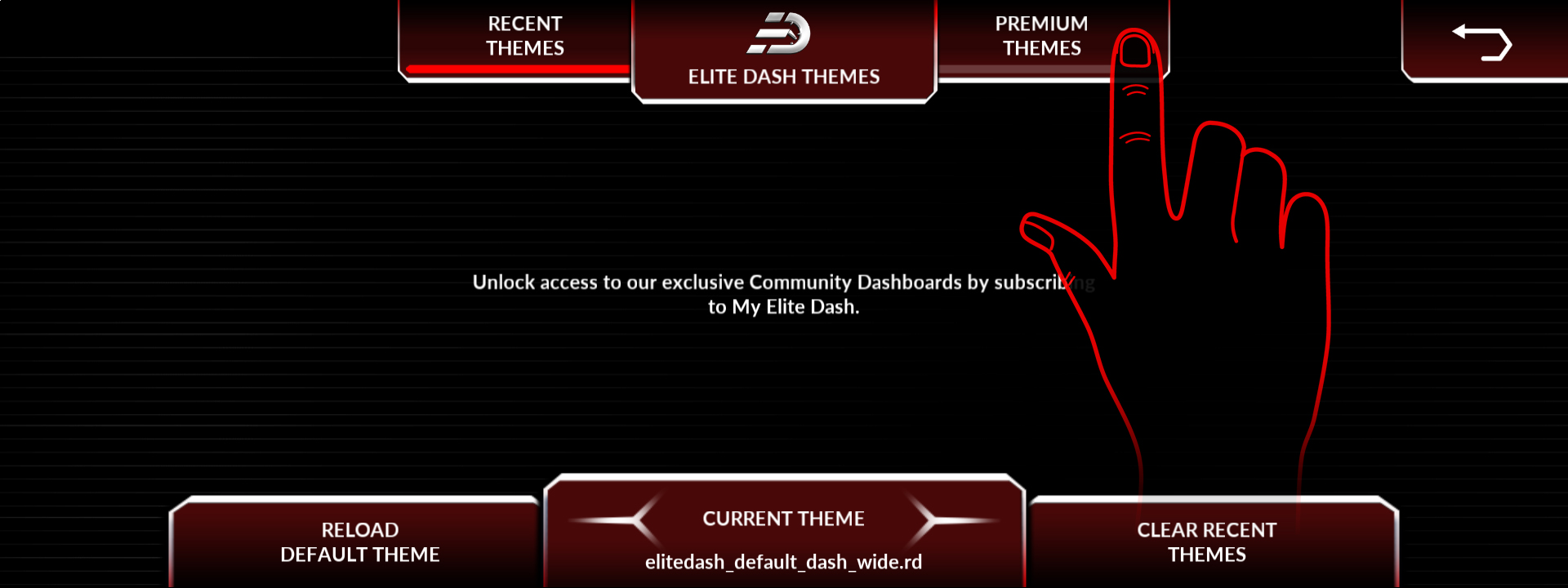
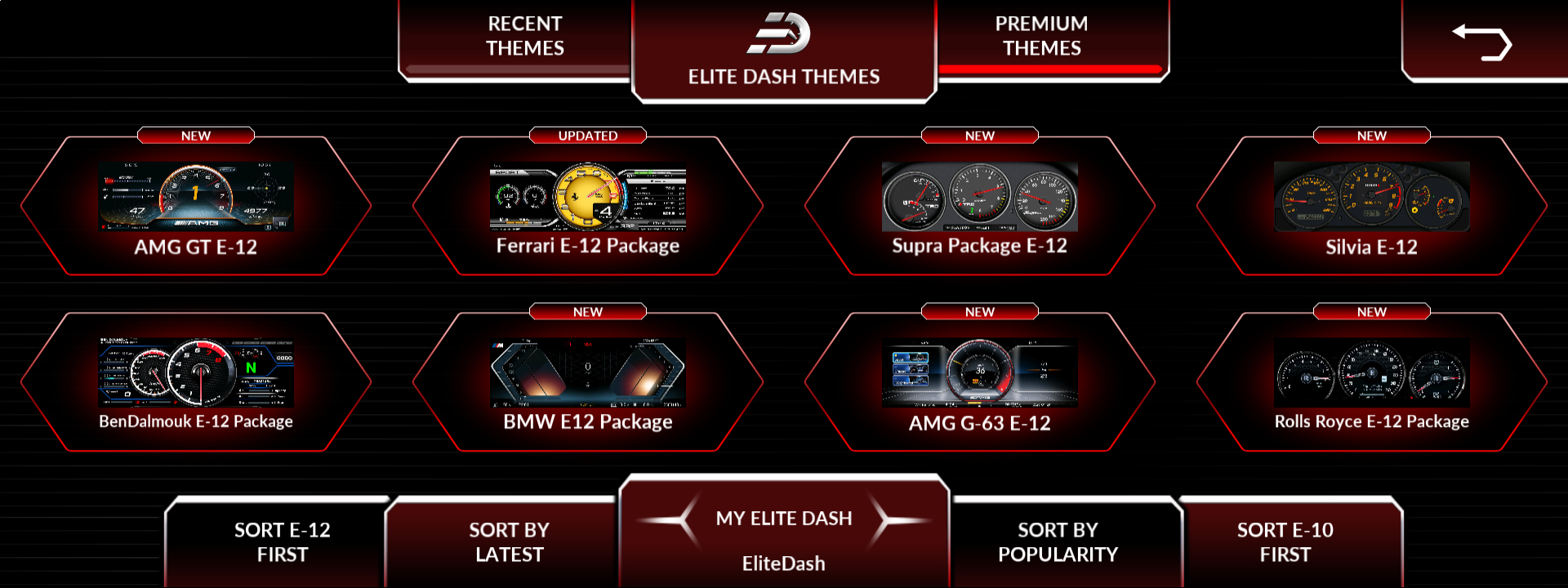
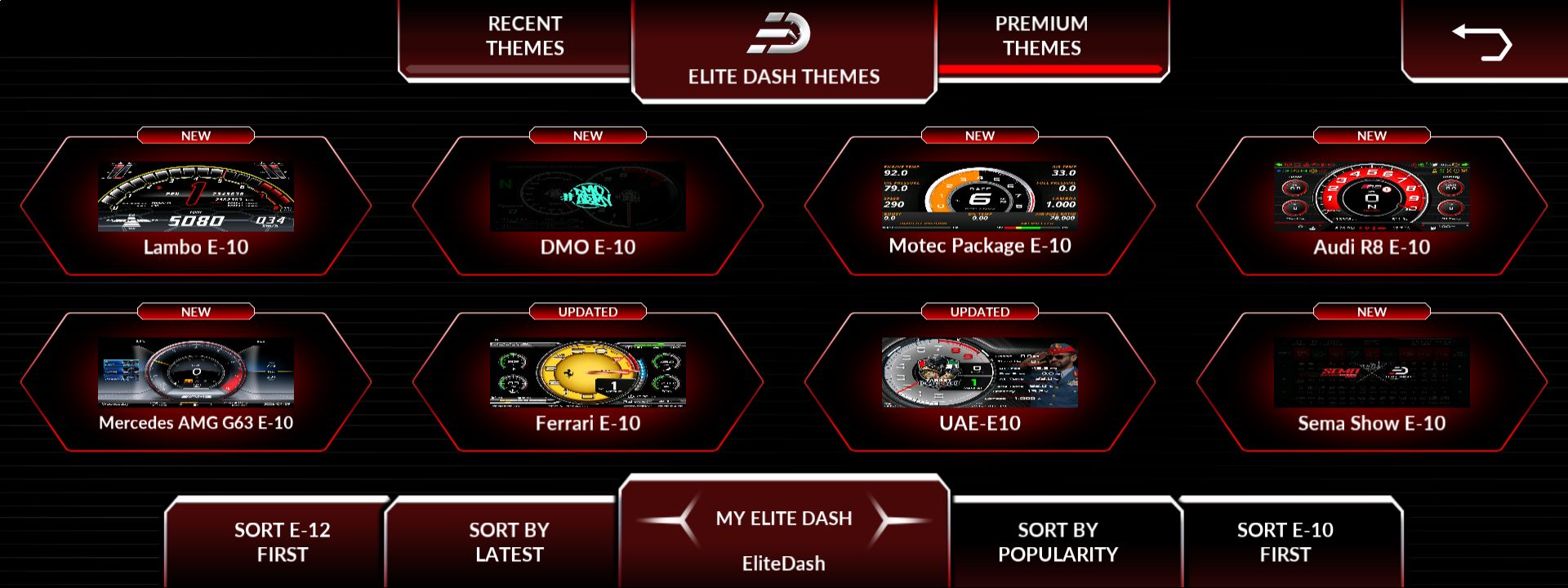
- Check Premium Themes, not Recent Themes. A newly purchased theme appears under Premium first.
- Confirm the theme matches your model. An E-12 theme will not appear on an E-10.
If it still does not appear, email contact@elitedash.ae with your account email and the purchase reference.
Related: How to Download a Purchased Theme · How to Sync Your Account After a Purchase · How to Contact Elite Dash Support