



Wire CAN High and CAN Low to the Emtron CAN bus, configure the CAN transmit packet in EMTune to match the EliteDash configuration, then add the Emtron source in Connection.
Emtron uses user defined transmit packets, so the packet number and byte order must match the configuration exactly. A mismatch produces plausible looking but wrong values.
On the ECU side:
- Open EMTune and go to the CAN setup.
- Configure the transmit packet used by EliteDash.
- Set the bit rate.
- Save to the ECU.
On the screen:
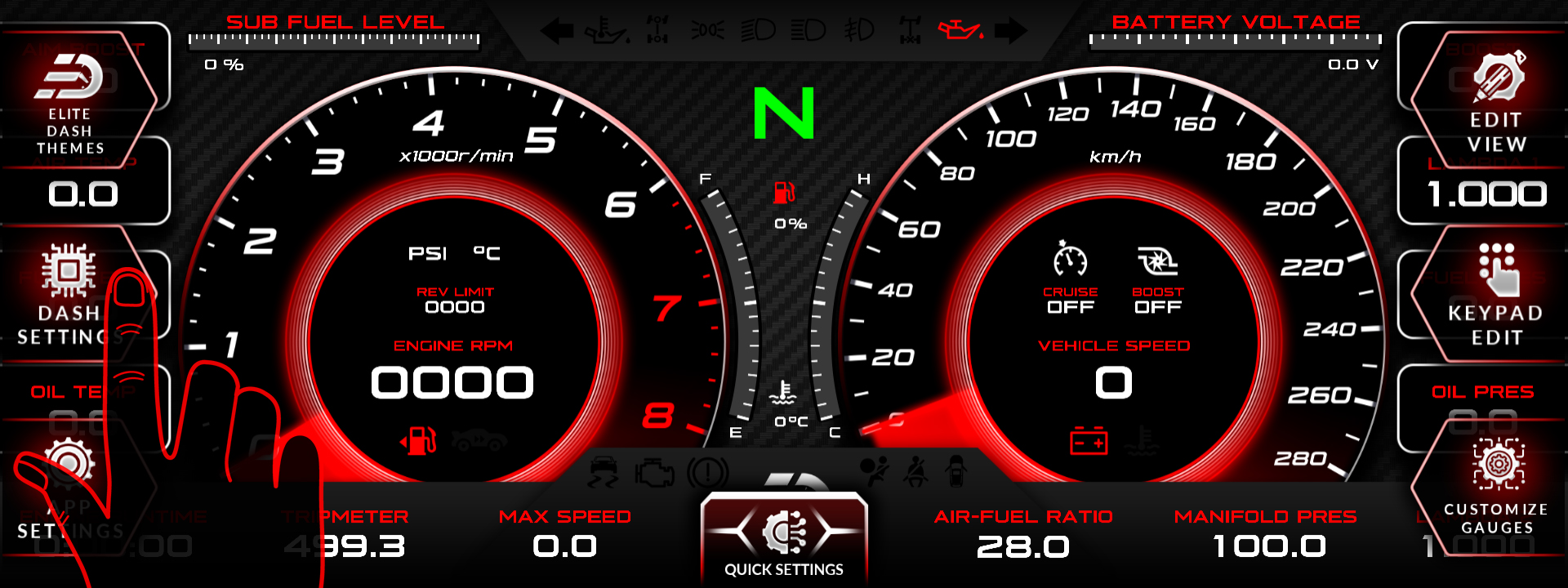
- Tap the top middle of the screen. The menu bar appears.
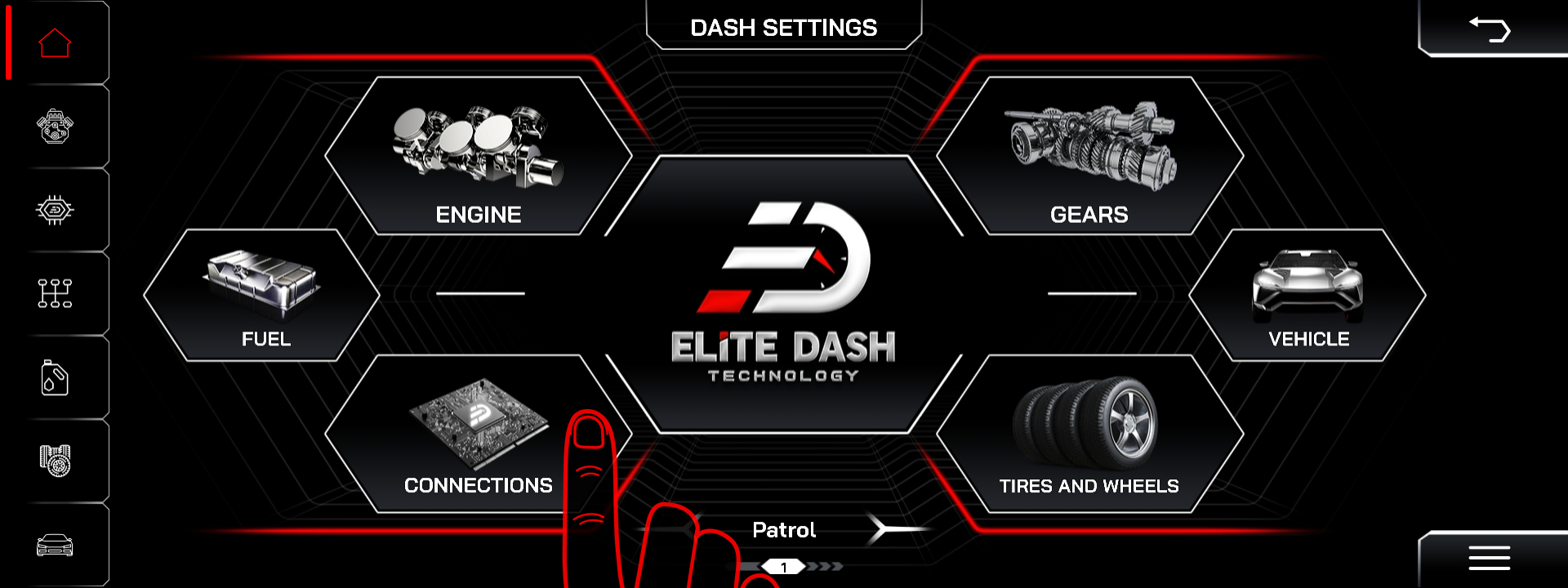
- Tap DASH SETTINGS.
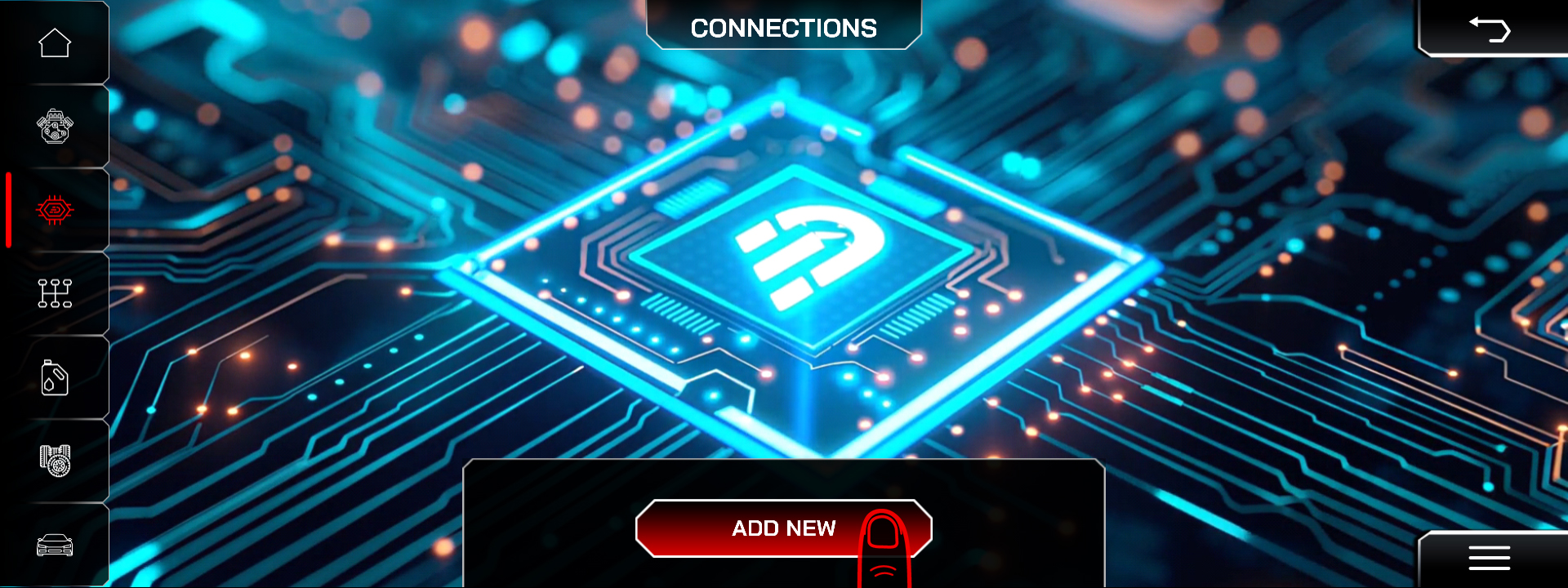
- Open Connection to view the current list of data sources.
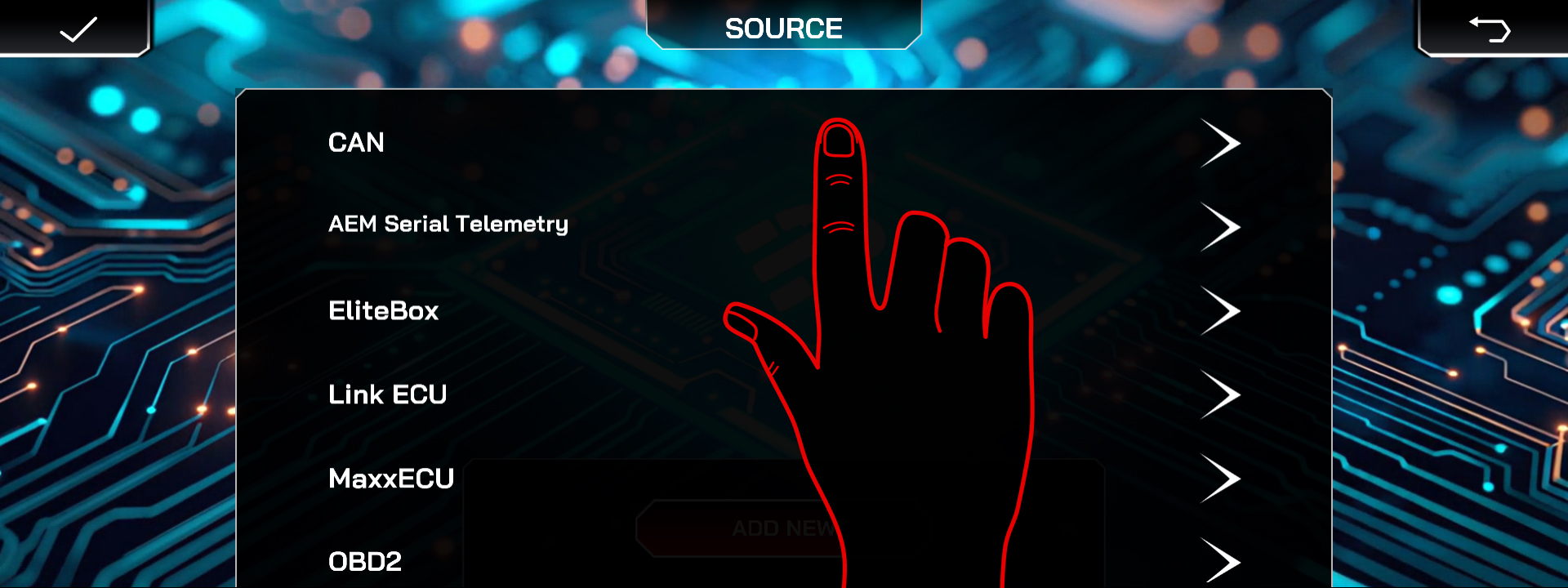
- Select the CAN source.
- Add CAN Description File
- Then select the Emtron source.
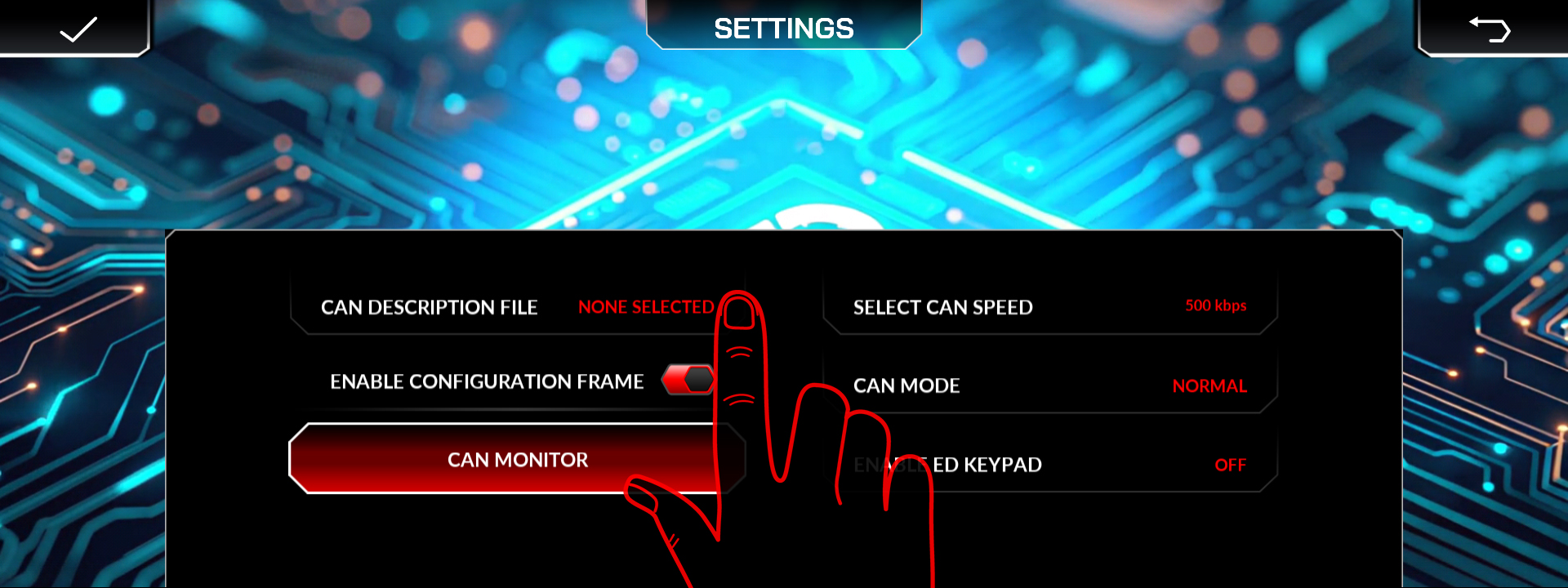
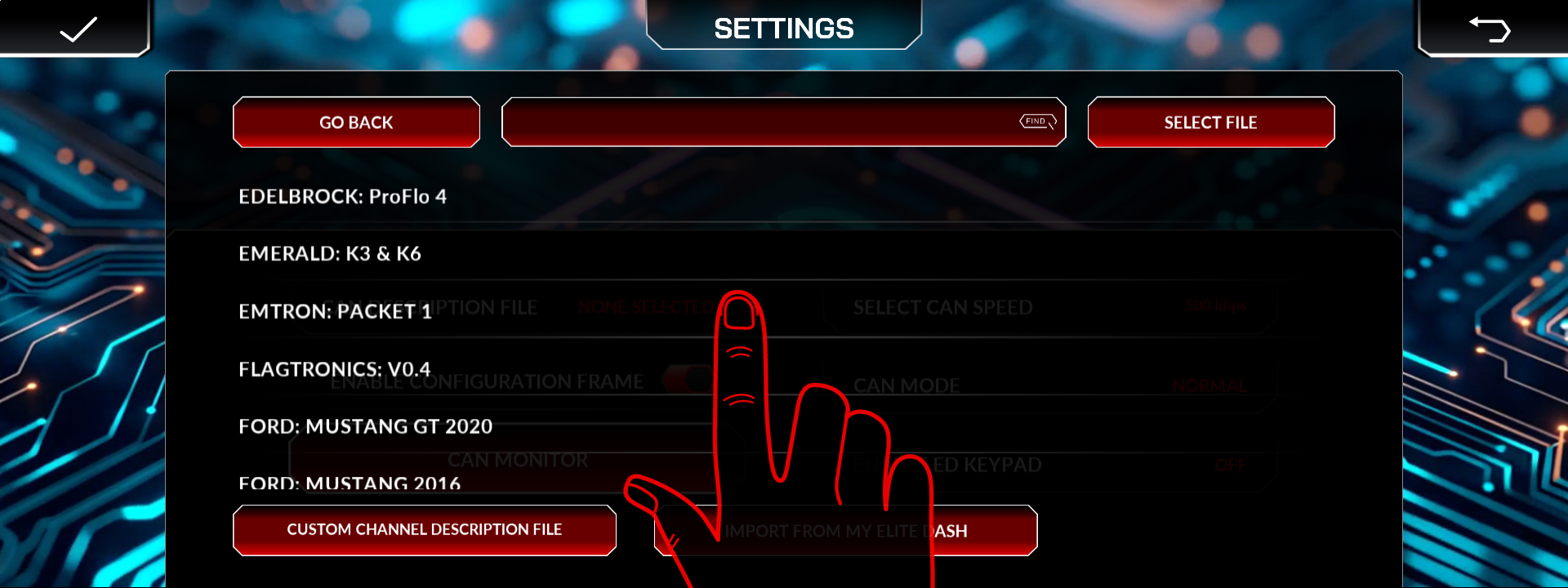
Published XML file name for Emtron, the transmit packet number and byte order, and the CAN bit rate.
Related: Understanding CAN XML Files and Channel Mapping · How to Add a New ECU Connection · Supported ECUs: Full List