



Tap the Welcome Screen to open the Main Menu, then tap the center logo to begin. The Main Menu shows five icons: Keypad, Pages, Packages, Setting and Touch Pad.
| Icon | Opens |
| Keypad | Keypad sub-menus: Boost Level, RPM Level, Switches |
| Pages | Dashboard pages, changed by rotating the dial |
| Packages | Recent theme packages, changed by rotating the dial |
| Setting | System settings |
| Touch Pad | Turns the keypad into a touchpad for the main display |
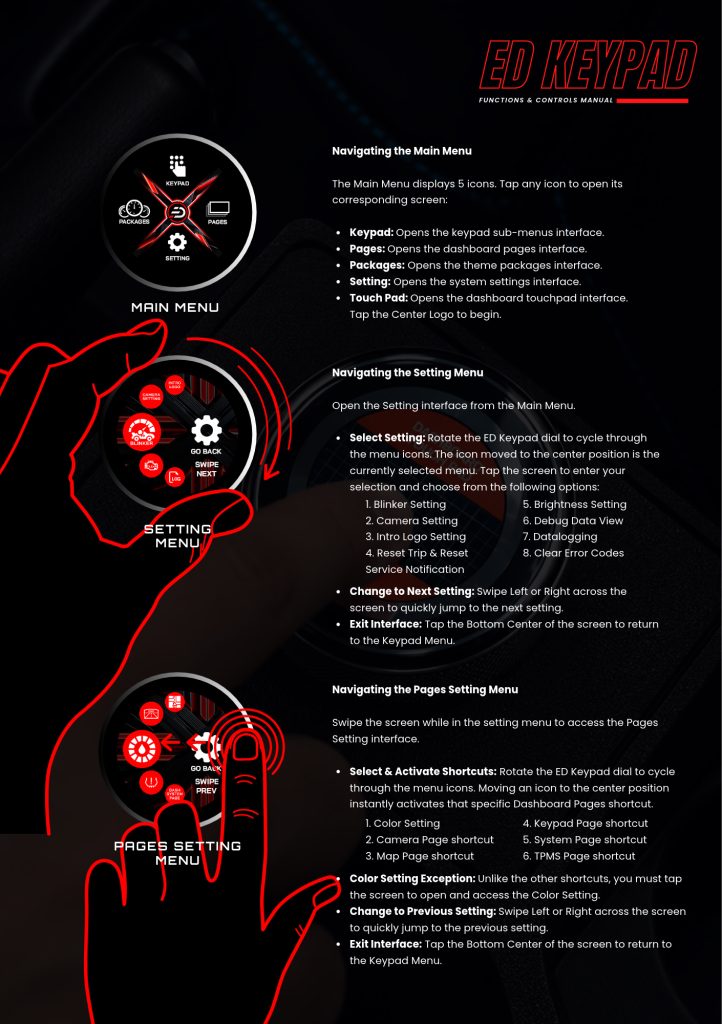
Inside Setting you get eight options:
- Blinker Setting
- Camera Setting
- Intro Logo Setting
- Reset Trip and Reset Service Notification
- Brightness Setting
- Debug Data View
- Datalogging
- Clear Error Codes
Swipe in the Setting menu to reach the Pages Setting interface with six shortcuts: Color Setting, Camera Page, Map Page, Keypad Page, System Page and TPMS Page. Moving an icon to the center position activates that shortcut immediately, except Color Setting, which you must tap to open.
Tap the bottom arrow or bottom center of the screen to exit any interface.
Related: Using the ED Keypad as a Touch Pad · Adjusting Boost and RPM Levels from the ED Keypad · Customizing Keypad Button Names and Icons